Stripe Connect lets Omnibooking require card payment before a selected booking is confirmed. This guide follows the current backend flow: connect Stripe, wait for verification, turn on payment for fixed-price services, then test the booking page.
What Omnibooking creates
When you connect Stripe from Omnibooking, the backend creates a Stripe Standard connected account if your Omnibooking account does not already have one. If an account ID already exists, Omnibooking reuses it and sends you back through Stripe onboarding.
Account type
Omnibooking creates a Stripe Standard account through Stripe Connect.
Onboarding link
The app sends you to Stripe account onboarding, then returns you to integration settings.
Verification state
The Stripe webhook marks your Omnibooking account connected after Stripe reports that details were submitted.
How to connect Stripe
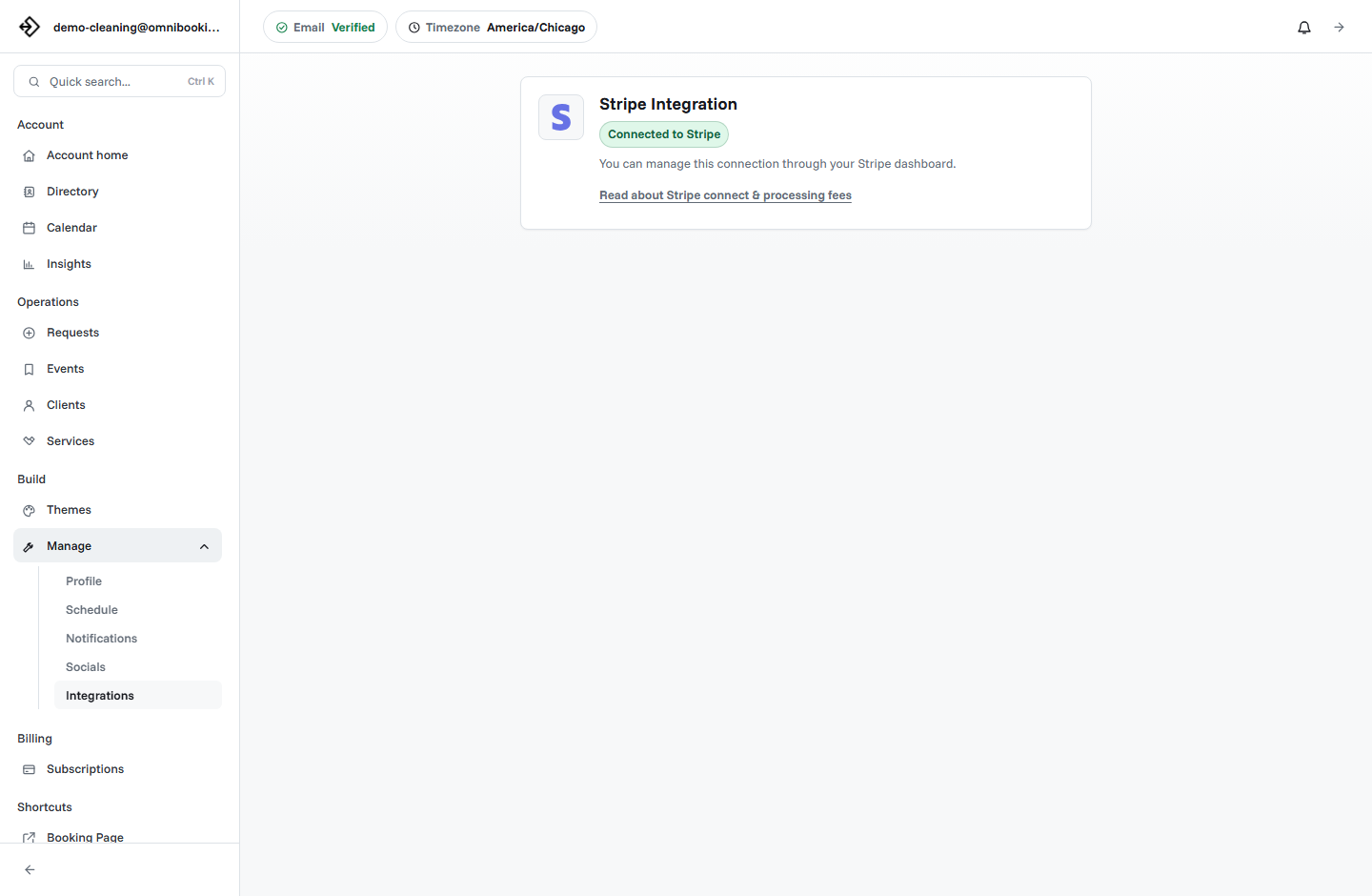
- Open integration settings. Go to Dashboard, Manage, then Integrations.
- Choose Connect with Stripe. Omnibooking creates or reuses your connected account and redirects you to Stripe.
- Complete Stripe onboarding. Use the Stripe account that should receive paid booking payouts.
- Return to Omnibooking. You are sent back to integration settings. After Stripe sends the account update webhook, Omnibooking stores the connection as verified.
- Open the Stripe dashboard when needed. Once connected, Omnibooking can create a Stripe login link so you can manage the account in Stripe.
Turn on paid booking for a service
The payment toggle is tied to service setup. It appears after Stripe is verified and is intended for fixed-price services.
- The service uses Fixed Price, not Free or Variable Price.
- The service price is the exact amount the client should be charged.
- The Require payment before booking toggle is On.
- The booking page shows the payment step before the client can finish booking.
Omnibooking fee
For paid bookings, the backend calculates an Omnibooking application fee from the booking amount in cents.
ceil(amount_cents * 0.039 + 40)
The client is charged the service price. Omnibooking passes the connected Stripe account as the payment destination and sets the application fee on the payment. Stripe processing fees are handled by Stripe and are separate from the Omnibooking application fee shown here.
Payment rules from the backend
Currency
Paid booking PaymentIntents are created in USD.
Payment method
The paid booking endpoint restricts payment methods to card payments.
Connected account
The payment request includes the connected Stripe account ID as the destination for the charge transfer.
Event creation
The paid event is created inside the same backend flow that creates and confirms the PaymentIntent. If Stripe does not return a succeeded payment, the booking returns an error instead of completing normally.
Before sharing a paid booking link
- Open the public booking page and choose the paid service.
- Confirm the displayed price matches the service price in the dashboard.
- Confirm the payment notice names the service and charge amount.
- Confirm the booking only reaches the success state after payment succeeds.
- Open Stripe dashboard if you need payout, dispute, or account-level payment details.
Related resources
How Much Should Booking Software Cost?
Put payment fees and paid booking features in the broader pricing context.
Reduce No-Shows With Reminders
Decide when deposits or payments should support reminder workflows.
How to Create a Booking Page
Place payment expectations clearly in the client-facing booking flow.
Online Booking Checklist
Test the paid booking path before sharing a payment-enabled service.